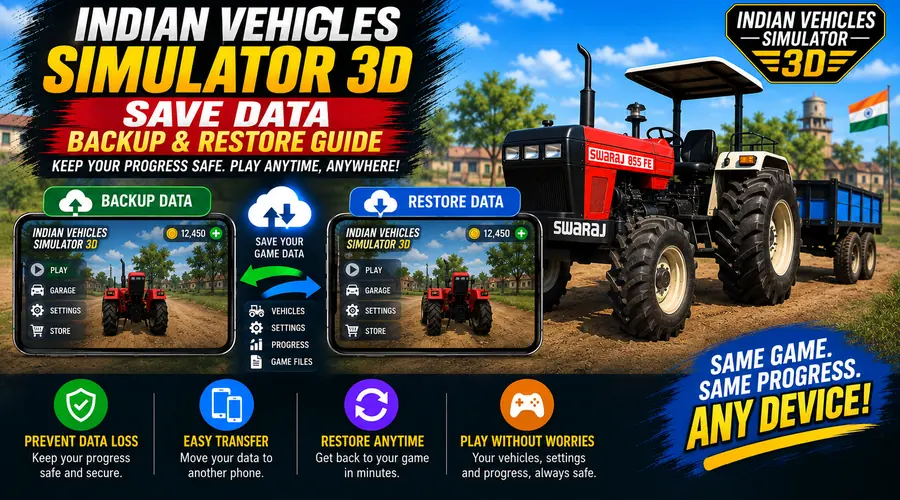
Save Data Backup & Restore Guide
Time Required: 5 to 10 Minutes | Platform: Android | Last Verified: August 2026
Written by David Kalin, Gaming & SEO Expert with 5+ years covering mobile games. This is an independent fan resource and is not affiliated with, endorsed by, or operated by AN Gaming Studio.
Need a save data backup for Indian Vehicles Simulator 3D? You open the game and your progress isn’t there, or you’re trying to figure out how to actually save it in the first place before you lose it. Both come down to the same root cause: this game’s save system is manual and local, not automatic, and that catches a lot of players off guard.
Indian Vehicles Simulator 3D progress not saving is most often caused by never actually using the manual Save option in the Customize menu, or by corrupted local app data, and both have specific, direct fixes.
Why This Happens
Unlike games with automatic cloud saves, this game’s Save and Load option, found in the Customize menu, only saves your progress when you actually tap it. If you’ve been assuming the game saves automatically in the background the way many mobile games do, that’s the single most common reason progress appears to vanish, it was never actually saved in the first place.
The second real cause is corrupted local app data. Because your save lives entirely on your device rather than a server, anything that corrupts that local data, an interrupted update, a crash at the wrong moment, or low storage during a save, can damage it. Official distributor documentation for this exact game specifically lists corrupted local app data as a real, known issue, and recommends clearing cache and data as the fix, with the direct warning to back up anything important first.
How to Fix It
Fix 1: Create a Save Data Backup with the Manual Save Option
Open the Customize menu and use the Save option deliberately, every time you make progress or a change you want to keep, not just occasionally. Since this is manual, it only protects what you save, treat it the same way you’d treat saving a document, if you didn’t save it, it’s not there to lose.
Fix 2: Use Load to Confirm Your Save Actually Worked
After saving, use the Load option to confirm it actually restores what you expect before you count on it. This takes a few seconds and catches a failed save immediately rather than the next time you open the game.
Fix 3: If Data Is Corrupted, Clear Cache First, Not Data
If the save game genuinely isn’t working, go to Settings, then Apps, find Indian Vehicles Simulator 3D, and try clearing cache first, not data, clearing cache removes temporary files without touching your actual save. Only clear data as a last resort, since that can wipe your progress entirely, and only after you’ve accepted that risk.
If corrupted data is the confirmed cause and clearing cache alone doesn’t resolve it, there currently isn’t a confirmed way to repair a corrupted local save file, this is an honest limitation of a save system that lives entirely on your device with no server-side copy.
How to Prevent This Going Forward
Making a save data backup a regular habit is the best prevention here. Build a habit of saving through the Customize menu after any session where you’ve made changes you’d want to keep, rather than relying on memory to catch it eventually. Keep reasonable free storage on your device, since a save interrupted by insufficient storage is a preventable, avoidable cause of corruption. Avoid force-closing the game or letting your device shut down mid-save if you can help it, and if you’re about to update the game or your Android version, save your progress first as a matter of habit, not just when something already feels wrong.
Get Indian Vehicles Simulator 3D — Official Play Store
Frequently Asked Questions
Q: Why isn’t my progress saving in Indian Vehicles Simulator 3D?
The most common reason is that the Save option in the Customize menu is manual, not automatic, if you haven’t actively tapped Save, your progress was never stored in the first place.
Q: How do I actually save my progress?
Open the Customize menu and use the Save option directly, then use Load afterward to confirm it worked, this is the only way progress is stored since there is no automatic background save.
Q: My save game says it’s not working, what does that mean?
This usually points to corrupted local app data, official distributor documentation for this game lists this as a known issue and recommends clearing the app’s cache as the fix.
Q: Should I clear cache or clear data to fix a save problem?
Clear cache first, since it removes temporary files without touching your save, only clear data as a last resort, since that can wipe your progress entirely.
Q: Can I recover a corrupted save file?
We have not found a confirmed way to repair a corrupted local save, since the save lives only on your device with no server-side backup, this is a real limitation to plan around rather than something we can promise a fix for.
Final Tips
A save data backup habit is the single best protection you have here. Treat the Save option as something you do actively, not something the game handles for you, that single habit prevents most of the “lost progress” reports we’ve seen. If you’re specifically worried about switching to a new phone rather than losing data on your current one, our Transfer Data guide covers that separate situation honestly as well.