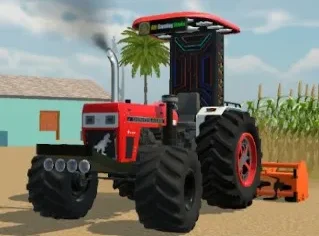
Indian Vehicles Simulator 3D for PC – Windows & Laptop
⏱ Time Required: 10 to 15 Minutes | 📱 Platform: PC (Windows) | ✅ Last Verified: August 2026
Written by David Kalin. This is an independent fan resource and is not affiliated with, endorsed by, or operated by AN Gaming Studio.
Can you actually play Indian Vehicles Simulator 3D on PC, or is that just emulator marketing? Yes, and there are two genuinely different ways to do it. Google Play now officially lists this game as available on Windows through Google Play Games, and on top of that, BlueStacks, LDPlayer, MEmu, MuMu, and GameLoop all support running the Android version through an emulator. We will walk through both routes so you can pick the one that actually fits your setup.

Yes, Indian Vehicles Simulator 3D is officially available on PC through Google Play Games on Windows, and it can also be played through Android emulators like BlueStacks, LDPlayer, or MEmu.

Can You Play Indian Vehicles Simulator 3D on PC?
The short answer is yes, and it is worth knowing there are two meaningfully different routes rather than assuming an emulator is your only option. Google Play’s own listing for the game explicitly states that Google Play Games on PC is required to install it on Windows, which makes this an officially supported method, not a workaround.
Alongside that official route, emulator platforms compete for the same audience. Here is how the main options stack up.
| Method | Type | Notes |
|---|---|---|
| Google Play Games | Official | Requires Google Play Games on PC, listed directly by Google |
| BlueStacks | Emulator | Dedicated page for this game, minimum Windows 7 / 4 GB RAM |
| LDPlayer | Emulator | Dedicated page, keyboard and mouse mapping support |
| MEmu | Emulator | Dedicated install guide published for this game |
| MuMu / GameLoop | Emulator | General Android emulators, not independently confirmed to have a dedicated listing for this specific title at time of writing |
Indian Vehicles Simulator 3D PC System Requirements
Requirements differ depending on which method you use, so do not assume BlueStacks’ minimum spec applies to Google Play Games or vice versa.
Official Google Play Games Requirements
Windows 10 version 2004 or newer
SSD with at least 10 GB available
Intel UHD Graphics 630 or equivalent
4 physical CPU cores
8 GB RAM
A Windows administrator account
Hardware virtualization enabled
In plain terms: RAM is your system’s short-term memory, more of it means smoother multitasking. Your CPU core count affects how much the processor can handle at once. The GPU (graphics processor) determines how well the game renders visually. An SSD is a faster storage drive than a traditional hard disk, and Google Play Games specifically wants one with free space available. Virtualization is a CPU feature that needs to be turned on in your BIOS settings for the Android environment to run properly on Windows.
Emulator Requirements
These are general recommended specs for running Android emulators smoothly, not official game requirements, since each emulator publishes its own numbers. BlueStacks lists a minimum of Windows 7 or later, macOS 11 or later, and 4 GB of RAM for its platform specifically.
| Component | Minimum | Recommended |
|---|---|---|
| Windows | 7 or newer | 10 or 11 |
| CPU | Dual-core | Quad-core or better |
| RAM | 4 GB | 8 GB or more |
| Storage | 10 GB free | 20 GB free (SSD preferred) |
| GPU | Integrated graphics | Dedicated GPU |
| Virtualization | Recommended | Enabled |
Method 1: Google Play Games
This is the official Windows route, so it goes first.
1. Install Google Play Games for PC.
2. Sign in with your Google account.
3. Search for Indian Vehicles Simulator 3D.
4. Open the game listing.
5. Click Install.
6. Launch the game.
7. Configure your controls.

Google Play markets this PC route around a larger screen, improved controls, and account synchronization, since you are signed into the same Google account you would use on mobile.
Method 2: BlueStacks
1. Download and install BlueStacks.
2. Open BlueStacks.
3. Sign into Google Play.
4. Search Indian Vehicles Simulator 3D.
5. Install the game.
6. Launch it from the BlueStacks home screen.
7. Configure keyboard controls.
BlueStacks maintains a dedicated page for this exact game and publishes its own PC installation instructions and system requirements separately from Google’s official Windows route.

Method 3: MuMu Player
1. Download MuMu Player.
2. Install it.
3. Open the Play Store inside MuMu.
4. Search for the game.
5. Install it.
6. Launch and play.
Once installed, MuMu lets you adjust CPU allocation, RAM allocation, target FPS, resolution, and graphics rendering mode from its settings panel. We are not going to promise a specific high FPS number for the game itself here, since that describes emulator capability rather than confirmed in-game performance, actual frame rates depend on your hardware and the emulator’s current settings.

Method 4: GameLoop
1. Install GameLoop.
2. Open GameLoop.
3. Search for Indian Vehicles Simulator 3D.
4. Select the game.
5. Click Install.
6. Launch.

Method 5: LDPlayer and MEmu
Both of these publish their own dedicated setup pages for this game. For LDPlayer: install LDPlayer, open Google Play inside it, search the game, install, and configure keyboard and mouse controls, LDPlayer specifically promotes custom keyboard and mouse mapping for this title. For MEmu, the workflow is nearly identical: download the MEmu installer, open Google Play on the MEmu desktop, search Indian Vehicles Simulator 3D, install it, and launch from the icon once setup completes.

Indian Vehicles Simulator 3D PC Download: What It Actually Means
“PC download” for this game covers three different things people mean when they search it: installing through Google Play Games, installing through an Android emulator, or manually installing an APK file inside an emulator. These are not interchangeable, and it is worth knowing which one you are actually looking for.
You can technically download the APK file directly to a PC, but an APK is an Android package, not a native Windows executable, your PC cannot run it on its own without an emulator or the Google Play Games layer underneath it. There is currently no standalone Windows .exe installer for this game, Google Play’s Windows availability works through Google Play Games specifically, not a traditional downloadable installer.
Can You Install the APK on PC?
Yes, but only through an emulator, the flow is APK file, imported into an Android emulator, running on your PC, not APK running natively on Windows. To import an APK into BlueStacks, drag the file onto the BlueStacks window or use its built-in APK installer option, then let it complete the install like any other app.
An APK is a single installer file, while an XAPK bundles the APK together with additional data the game needs, XAPK installs require an emulator or installer that specifically supports split packages. For the cleanest experience with the least troubleshooting, the official Google Play Games route is worth trying first before going the APK-in-emulator route.
Keyboard and Mouse Controls
These are suggested control mappings based on common emulator conventions for driving games, not confirmed native keybinds from the developer, adjust them to whatever feels natural once you are in the settings menu.
| Action | Suggested Key |
|---|---|
| Accelerate | W or Up Arrow |
| Brake / Reverse | S or Down Arrow |
| Steering Left/Right | A / D or Left/Right Arrows |
| Handbrake | Spacebar |
| Camera Change | C |
| Enter/Exit Vehicle | F |
| Horn | H |
Best PC Settings
Graphics settings, FPS targets, resolution, and rendering mode are all adjustable from your emulator’s own settings panel rather than the game itself in most cases. For low-end PCs, drop resolution first, then reduce your target FPS and switch to a lighter rendering mode before touching RAM or CPU allocation. For high-end PCs, you can push resolution and FPS targets up and allocate more RAM and CPU cores to the emulator instance, since the game’s newer coastal and city areas are graphically denser than earlier builds.
How to Improve Performance
Enable hardware virtualization in your BIOS if you have not already, this is one of the most common reasons an emulator or Google Play Games underperforms. Close unnecessary background applications before launching, use an SSD rather than a traditional hard drive if you have the choice, and keep your graphics drivers updated. Allocate a reasonable amount of RAM to your emulator instance rather than maxing it out, avoid running multiple emulator instances at once if you are on limited hardware, and reduce resolution or FPS targets first if performance still lags. A dedicated performance mode, where available, is worth switching on for weaker machines.

Indian Vehicles Simulator 3D PC Gameplay
Playing on PC changes the experience in a few genuine ways beyond just a bigger screen. Keyboard and mouse controls give you more precision than touchscreen buttons, especially useful when navigating tight off-road terrain or lining up a landing in the aircraft. Better visibility on a large monitor makes spotting details in the coastal and city regions easier, and longer sessions feel less taxing without holding a phone.
The full range of gameplay carries over, driving cars, bikes, tractors, trucks, and buses, farming with functional attachments, off-road exploration, and the aviation content added in version 0.52, flying the helicopter or airplane out of the airport map. Train driving on PC benefits from the same precision advantage as off-road driving, easier to line up on tight rail curves with keyboard input than with a touchscreen.

PC vs Android
| Feature | PC | Android |
|---|---|---|
| Screen | Larger, easier to see detail | Portable, smaller |
| Controls | Keyboard and mouse, more precise | Touchscreen, more direct |
| Performance | Depends on PC specs, generally stronger | Depends on phone specs |
| Storage | Generally more available | Often limited on budget phones |
| Installation | Requires Google Play Games or an emulator | Direct from Play Store |
| Portability | Tied to your PC | Play anywhere |
Which is better depends entirely on what you want. If you value precision and screen size and mostly play at a desk, PC wins. If you want to play anywhere without setup, Android is the simpler choice. Neither is objectively superior, they suit different play styles.

PC Troubleshooting
Not installing on PC usually traces back to insufficient storage, an outdated Windows version for Google Play Games specifically, or virtualization not being enabled. If the game won’t open, try relaunching your emulator or Google Play Games entirely rather than just the game. A black screen often points to a graphics driver issue, update your GPU drivers and try again.
Crashes and lag are usually performance related, drop your resolution and FPS target before assuming something is broken. Low FPS ties back to the same cause, along with running too many background applications or emulator instances at once. If keyboard or mouse input is not registering, check your emulator’s control mapping settings, since custom keybinds sometimes need to be reassigned after an update.
If Google Play Games itself will not install, double check your Windows version meets the 2004 or newer requirement and that you are using an administrator account. A virtualization error means you need to enable it in your BIOS, this is one of the single most common PC setup failures for both Google Play Games and every emulator listed here. Insufficient RAM, outdated graphics drivers, and failed APK or XAPK installations round out the most common remaining issues, and the fixes are the same ones covered above: free up resources, update drivers, and verify you have the correct file for split-package installs.
PC and Windows Versions
Google Play Games on PC currently requires Windows 10 version 2004 or newer, this is a hard requirement for the official route, not a suggestion. Emulator platforms are generally more flexible, BlueStacks lists Windows 7 or later as its own minimum, which is meaningfully more permissive than Google Play Games’ requirement. We are not going to claim the game officially works on Windows 7, since that claim only applies to certain emulators, not the official Google Play Games route, always check your specific method’s requirements rather than assuming one Windows version rule covers everything here.
Laptop Guide
Yes, the game runs on a laptop, through either method covered above, laptop hardware is treated the same as desktop hardware by both Google Play Games and the emulators. A low-end laptop with 4 GB of RAM will likely struggle, particularly with Google Play Games’ 8 GB requirement, an emulator route with reduced settings is the more realistic option on that kind of hardware. An 8 GB RAM laptop meets Google Play Games’ minimum and should run reasonably well through either method.
Integrated graphics can run the game, especially through a lighter emulator configuration, but expect to reduce resolution and FPS targets compared to a laptop with dedicated graphics. A gaming laptop with a dedicated GPU and 8 GB or more RAM should handle either method comfortably at higher settings.

BlueStacks vs Other Emulators
BlueStacks, MuMu, GameLoop, LDPlayer, and MEmu all accomplish the same core task, running the Android version of the game on your PC, but they differ in interface, resource usage, and extra features like multi-instance support or macro tools. We have not run a controlled performance comparison across all five for this specific game, so we are not going to declare one “best,” pick based on which interface you find easiest and which one runs smoothly on your specific hardware.
Official vs Emulator Method: Which Should You Choose?
Use Google Play Games when the official Windows route is available and your PC meets its requirements, it is the simplest, most directly supported path and keeps you tied to your existing Google account. Use an emulator instead when you specifically need Android APK compatibility, want emulator-specific features like multi-instance play, or your PC does not meet Google Play Games’ Windows 10 2004+ requirement but does meet a more lenient emulator minimum like BlueStacks’ Windows 7 floor.
PC MOD APK
Can you play a MOD APK on PC? Only through an emulator, the flow is MOD APK file, imported into an Android emulator, running on your PC, the same as any other APK, a MOD APK does not become a Windows application just because it is running inside an emulator window.
Installing a MOD APK in an emulator works the same way as installing the official APK, drag or import the file into the emulator’s installer. Whether it actually works is a separate question, version compatibility between the modified file and your emulator’s Android version can cause installs to fail or the game to crash, and we cannot verify this for any specific modified build since we do not host or test them. Avoid mixing old MOD APK data with your current game data, and do not expect any unsupported safety or feature claims made by a MOD APK site to be accurate just because the file happens to install.
Indian Vehicles Simulator 3D PC Features
Everything the game offers on Android carries over to PC: Indian cars, bikes, tractors, trucks, buses, JCB-style cranes, harvesters, airplanes, and helicopters, alongside farming gameplay, the full weather system, and both selectable maps with their various regions.
Frequently Asked Questions
Q: Can I play Indian Vehicles Simulator 3D on PC?
Yes, either officially through Google Play Games on Windows, or through an Android emulator like BlueStacks, LDPlayer, or MEmu.
Q: Is Indian Vehicles Simulator 3D officially available for Windows?
Yes, Google Play’s own listing states that Google Play Games on PC is required to install the game on Windows, making it an officially supported route.
Q: Can I play it on Windows 11?
Yes, Windows 11 exceeds Google Play Games’ minimum requirement of Windows 10 version 2004 or newer.
Q: What are the PC requirements?
For Google Play Games: Windows 10 2004+, an SSD with 10 GB free, Intel UHD Graphics 630 or equivalent, 4 CPU cores, 8 GB RAM, an administrator account, and virtualization enabled. Emulator requirements are more lenient and vary by platform.
Q: Can I use keyboard and mouse?
Yes, both Google Play Games and every emulator covered here support keyboard and mouse input, with control mapping configurable in settings.
Q: Why is the game lagging on my PC?
Lag on PC is usually tied to insufficient RAM allocation, virtualization not being enabled, outdated graphics drivers, or running too many background applications or emulator instances at once.
Q: Can I play the MOD APK on PC?
Only through an emulator, and we cannot confirm the safety or functionality of any specific modified file, since we do not host or test them.
Q: Does PC progress sync with Android?
This depends on whether you are signed into the same Google account across devices and how the game’s own save system handles that account, we cannot promise seamless sync since that depends on the game’s save implementation, not just the platform.
Q: Does it work on Windows 10?
It depends on your specific Windows 10 build, Google Play Games requires version 2004 or newer, older Windows 10 builds below that do not meet the official requirement, check your build number under Settings, then System, then About before assuming it will work.
Internal Links
Looking for the main download page? Visit the Indian Vehicles Simulator 3D homepage. Want an older build instead? Check our Old Version download page. Curious about codes and unlock-style content? Our Cheat Codes guide covers it the safe way. On iPhone or iPad instead? Our iOS guide covers App Store availability.